
Master Your Stats With The Ultimate Fortnite Tracker Guide
Every time you drop from the Battle Bus, you leave a trail of data. If you are serious about earning more Victory Royales, relying on guesswork is not enough. You need a fortnite tracker. This powerful tool reveals your hidden strengths, exposes your weaknesses, and shows exactly how you stack up against the competition. Whether you want to check your K/D ratio or see how many hours you have logged, tracking your stats is the fastest way to level up your gameplay. Let’s explore how you can use these analytics to dominate the island.
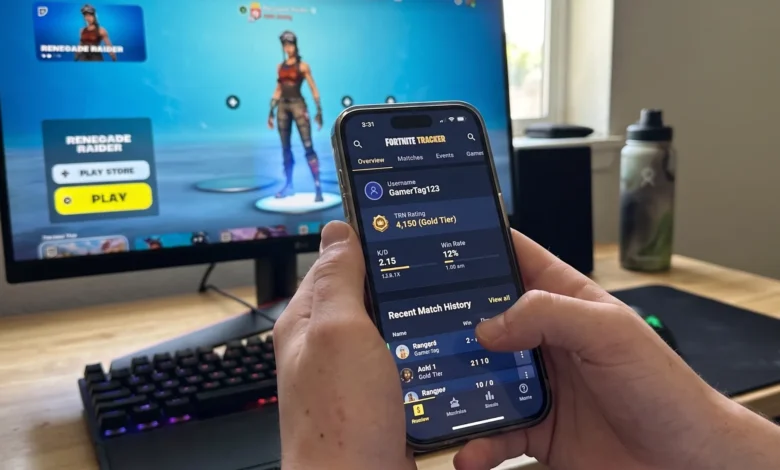
A Fortnite tracker is a third-party application or website, like Tracker Network, that connects to your Epic Games account to pull real-time gameplay data. It provides comprehensive statistics including your kill/death (K/D) ratio, win rate, match history, and overall TRN rating to help you improve.
Key Takeaways
- Analyze your lifetime K/D, win percentage, and total matches played.
- Compare your performance directly against friends, favorite streamers, and global leaderboards.
- Monitor your custom TRN Rating to track long-term skill progression.
- You must set your Epic Games gameplay privacy to “Public” for stats to sync.
- Companion apps offer live overlays and match-by-match analysis.
Why You Need a Fortnite Tracker
Improving at Battle Royale requires honest feedback. A tracker gives you unfiltered insight into your performance. You can stop wondering why you are losing gunfights and start looking at the actual numbers.
These platforms break down your entire career. They separate your data into Solo, Duo, and Squad game modes. You get to see exactly where you excel and which modes need more dedicated practice.
Many players also use a fortnite tracker to scout their opponents. By viewing the stats of players in your lobby, you can gauge the skill level of the competition. It turns raw data into a clear, actionable strategy for your next match.
Setting Up Your Fortnite Tracker Account
Before any website can read your data, you must adjust your in-game settings. Epic Games hides this information by default to protect newer players. If your profile is set to private, third-party sites will simply show zero matches played.
Follow these simple steps to make your profile visible:
- Launch the game and open your main settings menu.
- Navigate to the far-right tab labeled “Account and Privacy”.
- Scroll down to the “Gameplay Privacy” section.
- Toggle the “Show on Career Leaderboard” setting to “On”.
Once activated, head to a site like Tracker Network and search for your Epic username. Your entire match history will instantly populate on the screen.
Understanding the TRN Rating
Most popular tracking platforms use a custom ELO system called the TRN Rating. This is a skill-assessment score that updates after every single match you play.
The system rewards aggressive, successful playstyles. Earning high placements and multiple eliminations will boost your score quickly. Conversely, hiding all match and getting eliminated early will cause your rating to drop.
The TRN Rating is broken down into different tiers. Everyone starts at a base score of 1,200. As you climb past 2,500, you enter the silver tier, and breaking 4,000 puts you in gold. A rating above 5,000 generally places you among the elite players. These milestones give you tangible goals to chase outside of the standard ranked mode.
How to Use Stats to Improve Your Gameplay
Staring at numbers will not make you better unless you know how to apply them. The main goal is to identify trends in your gameplay habits.
If your win rate is high but your K/D is low, you likely play too passively. You are surviving until the end but actively avoiding fights. To fix this, drop into crowded Hot Spots to practice your close-quarters combat skills.
Conversely, a high K/D with a low win rate means you take unnecessary risks. You are winning early gunfights but dying in the mid-game due to poor positioning. Focus on zone rotation and resource management to survive those final circles.
Using your match history, you can also track the time of day you play best. You might easily discover you win more matches during afternoon sessions compared to late-night gaming grinds.
Top Features to Look for in a Tracker
Not all stat-tracking tools are built the same. The best platforms offer a suite of features designed to enhance your gaming experience.
- Live Match Overlays: Desktop apps provide real-time stats on your screen. You can see your live K/D and win probability without minimizing the game window.
- Item Shop Updates: Keep a close eye on the daily cosmetic rotation. You can set alerts for when your favorite rare skins finally return.
- Event Leaderboards: Track professional tournaments in real-time. Watch the points update live during the FNCS (Fortnite Champion Series).
- Teammate Analysis: See the stats of your random squad fills before the match even begins.
Comparing the Best Fortnite Trackers
While Tracker Network is the most famous, several other tools offer unique benefits. Here is a quick comparison of the top platforms available today.
| Tracker Name | Best Feature | Platforms Supported | Account Sync Required |
| Tracker Network (TRN) | Comprehensive global leaderboards | Web, iOS, Android, PC | Yes |
| Blitz.gg | In-game live overlays and pro tips | PC (Windows) | Yes |
| Fortnite.gg | Interactive map and spawn locations | Web | No (Map features only) |
If you want pure historical data, TRN is the undisputed king. If you prefer live, on-screen coaching and overlays, Blitz.gg offers an excellent desktop application.
Troubleshooting: Fortnite Tracker App Not Working?
Sometimes, companion apps fail to load or display stale stats. This is a very common issue that is usually easy to fix.
First, verify your internet connection and make sure your Epic Games account is properly linked to the app. If the app shows a “0” for your stats, double-check your in-game privacy settings. Your “Show on Career Leaderboard” option might have reset automatically after a recent patch update.
If the mobile app is crashing on your phone, clear your application cache in your device settings. You should also check the official Epic Games server status page. If the main game servers are down for maintenance, third-party APIs cannot pull new player data.
Final Verdict
A dedicated fortnite tracker is an absolute necessity for any competitive gamer. It completely removes the guesswork from your progression. By analyzing your win rate, kill ratios, and TRN score, you can pinpoint exactly what is holding you back. Start tracking your sessions today, and watch your Victory Royale count multiply.
Next Steps
Ready to take your gameplay to the next level? Log into your game right now and ensure your stats are set to public. Then, bookmark your favorite tracking site or download a desktop overlay. Check your stats after every session to see real-time improvement.
FAQs
Is using a Fortnite tracker a bannable offense?
No. Tracking websites use the official API provided directly by the developers. They are completely safe and do not violate the game’s terms of service.
Why does my tracker say my account is private?
You need to enable public stats inside the game client. Go to your “Account and Privacy” settings and turn on the “Show on Career Leaderboard” option.
How often do my stats update?
Most trackers update within three to five minutes after a match concludes. You may need to manually refresh your web page to see the latest numbers.
Can I track my Nintendo Switch or mobile stats?
Yes. As long as your Epic account is properly linked to your console or mobile device, your data will sync perfectly across all platforms.
What is a good K/D ratio in Fortnite?
An average K/D is usually around 1.0. Anything above 2.0 is considered highly competitive, meaning you consistently secure two eliminations for every death.
Does tracking my stats slow down my game performance?
Using a website on a second monitor or your phone will not impact performance at all. However, some heavy desktop overlay apps might consume minor CPU resources on older PCs.